RR Trade Assistant
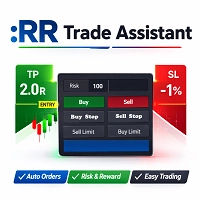
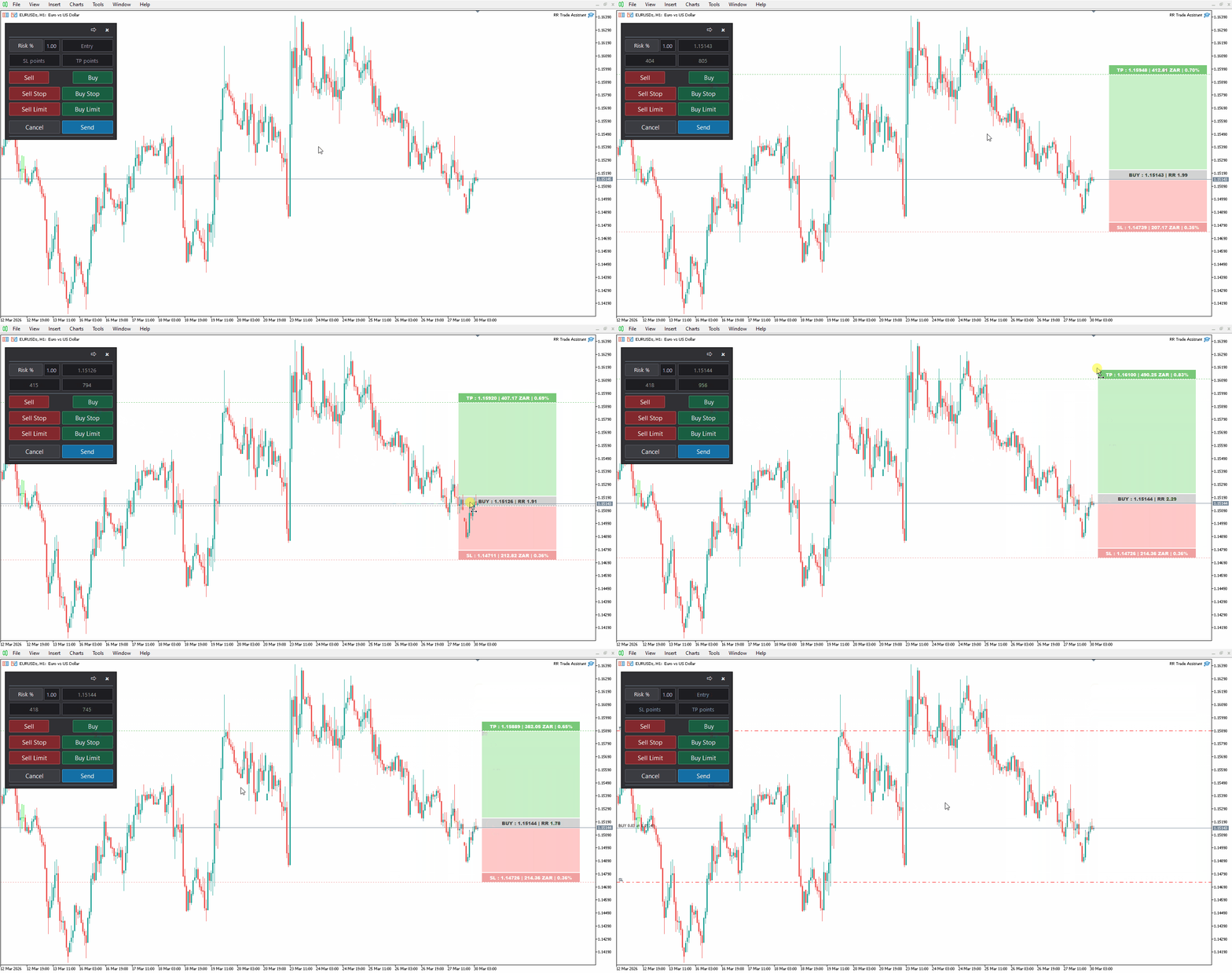
RR Trade Assistant is a utility Expert Advisor designed to help traders visually define trades and manage risk efficiently. This tool combines a graphical risk-reward interface with manual trade execution, allowing traders to easily set trade parameters directly on the chart. Users can define Entry, Stop-Loss, and Take-Profit levels, calculate lot size based on risk percentage, and execute trades directly from the control panel.
Key Features
Visual Risk-Reward Tool
Drag rectangles and lines directly on the chart to define Entry, Stop-Loss, and Take-Profit zones. All blocks remain synchronized with their corresponding price levels as the chart scales or scrolls.
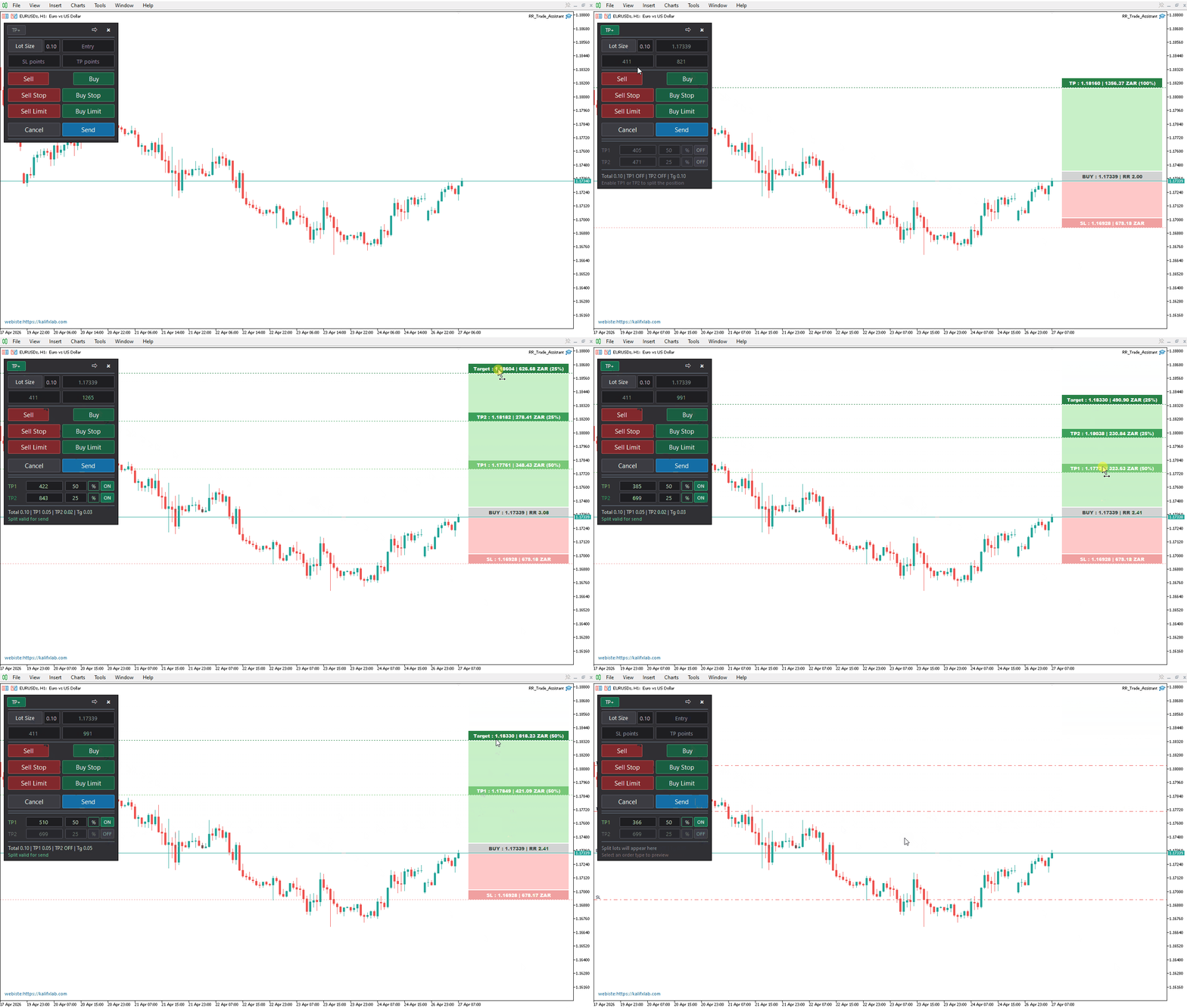
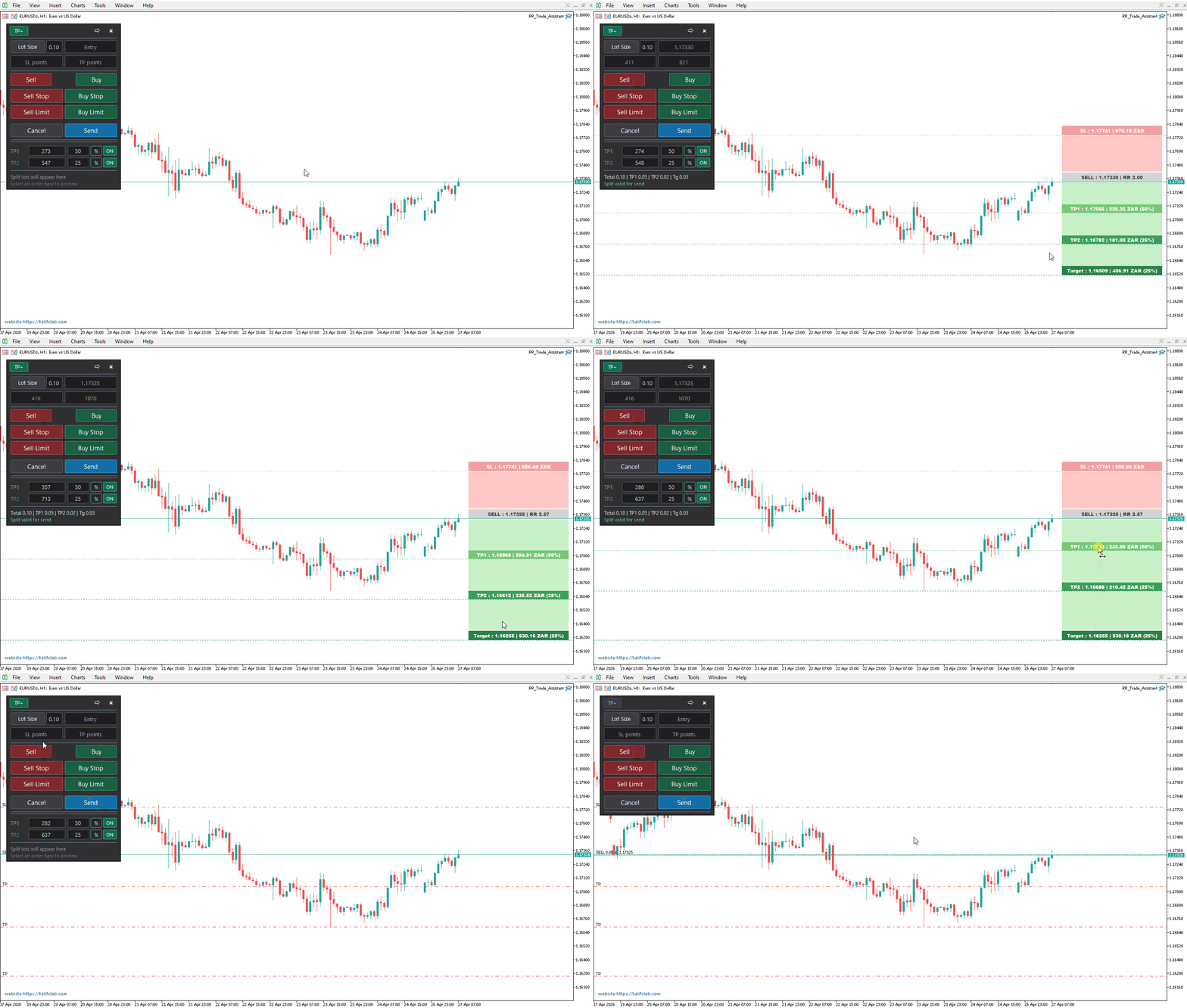
Multi-Target Take-Profit (TP1 / TP2)
Expand the panel using the TP+ button to enable TP1 and TP2. Each has independent draggable chart blocks and price lines. Configure partial closes for each level and preview lot distribution before sending orders. Remaining position runs to the main target. All legs are executed in a single click as separate orders.
Risk-Based Lot Calculation
Automatically calculates lot size based on account risk percentage or fixed lot size. Lot distribution across TP1, TP2, and Target is validated against broker minimums before execution.
Integrated Order Execution Panel
Place market or pending orders (Buy, Sell, Buy Stop, Sell Stop, Buy Limit, Sell Limit) directly from the panel. Multi-leg execution is handled automatically when TP1/TP2 are enabled.
Synchronized Inputs
All inputs (SL, TP, entry, and chart objects) update in real time and remain fully synchronized.
Automatic Break-Even
Optionally move stop-loss to break-even after price reaches a configurable percentage of the TP distance. Offset can be adjusted in points.
Adjustable Visual Interface
Resize both the RR tool and control panel independently. Font size and layout can also be customized.
Session Persistence
Saves panel position, risk settings, order type, TP configuration, and line prices. Automatically restores settings after restart or timeframe change.
Input Parameters
- RR_TOOL_SCALE_PERCENT : Scale the RR tool size (100 = default)
- RR_TOOL_FONT_SIZE : Font size for RR tool chart blocks
- PANEL_SCALE_PERCENT : Scale the control panel size (100 = default)
- TRADE_COMMENT : Custom comment attached to placed orders
- ENABLE_BREAKEVEN : Enable automatic break-even management
- BE_START_TP_PERCENT : Move SL to break-even after this % of TP distance is reached
- BE_OFFSET_POINTS : Break-even SL offset in points beyond entry price
Quick Start
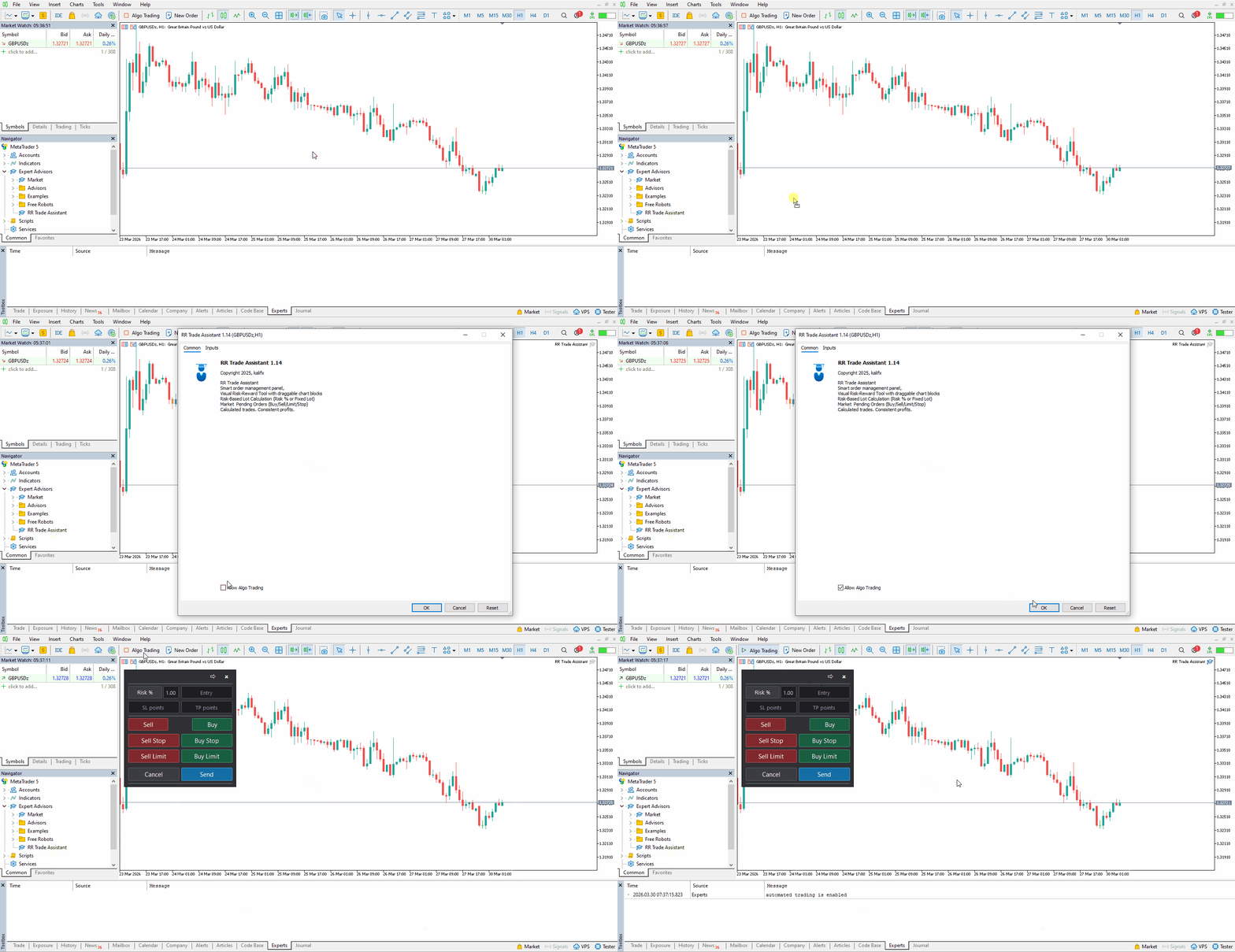
- Drag RR Trade Assistant onto your chart
- Enable Allow Algo Trading in settings
- Click OK to attach the EA
- Enable Algo Trading button in MT5 (must be green)
- Click TP+ to enable multi-target configuration (optional)
- Select order type (Buy, Sell, Buy Stop, etc.)
- Drag Entry, SL, TP, TP1, and TP2 levels on chart
- Click Send to place trade(s)
Using TP1 and TP2
- Click TP+ to expand multi-target settings
- Enable TP1 and/or TP2 switches
- Set distances in points or drag chart blocks
- Define partial close percentages for each level
- Remaining position continues to main Target
- Review lot split preview before sending
- Click Send to execute all legs simultaneously
TP orders are labeled in the terminal as [TP1], [TP2], and [Target] for easy identification.
After Attaching the EA, Check
- Experts and Journal tabs for errors
- Lot size meets broker requirements
- SL/TP levels are valid and not too close
- Market is open for selected symbol
- Lot split preview shows "valid for send"
Note
It is recommended to test RR Trade Assistant on a demo account before using it live to become familiar with all features and optimize settings.