NEWS PROTECTION EA

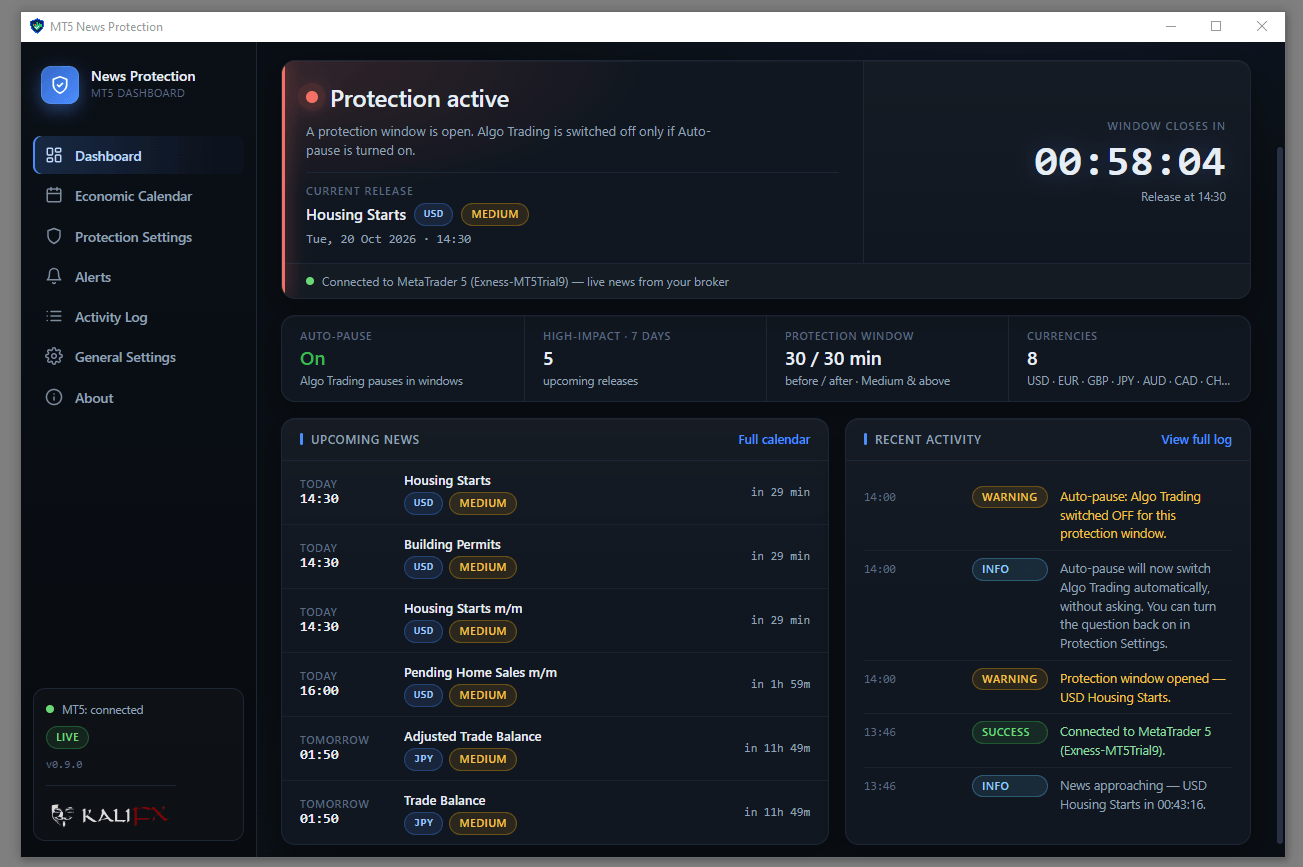
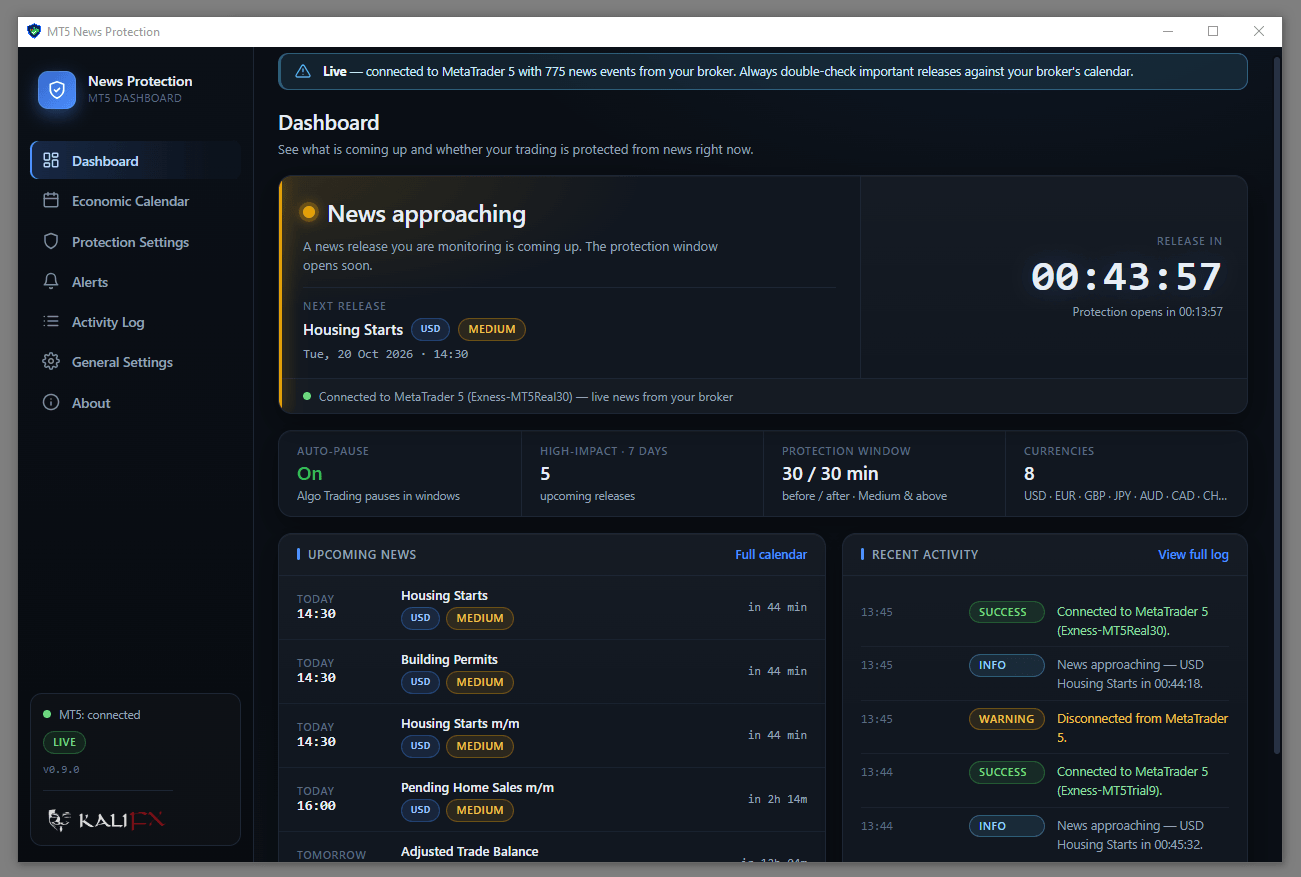
The News Protection EA is a tool that shields your trading from high-impact economic news. It is built from two parts: a Windows desktop dashboard (MT5 News Protection) that watches the economic calendar and builds protection windows around high-impact releases, and the MT5NewsBridge Expert Advisor that feeds the calendar into the app live from your own MetaTrader 5 terminal's broker calendar. Set how many minutes before and after an event you want protection, pick your minimum impact level and monitored currencies, and the dashboard counts you down to every matching release so you are never caught on the wrong side of a spike.
The app never fabricates events — with no EA connected the calendar stays empty and is clearly marked No data. It performs no trading operations: it never opens, modifies or closes a single trade.
Key Features:
- Live Dashboard: protection status, next high-impact event, upcoming event count, monitored currencies and a large live countdown.
- Economic Calendar: real events from your MT5 terminal's broker calendar (USD, EUR, GBP, JPY, AUD, CAD, CHF, NZD) with previous/forecast/actual values and a per-row countdown.
- Calendar Filters: free-text search, impact and currency chips, "upcoming only" toggle and sortable columns.
- Protection Windows: configurable minutes before and after an event, minimum impact level (Low / Medium / High) and automatic-protection master switch.
- Protection State Engine: Disabled, Armed, Waiting for next event, Protection active and No MT5 data — with every transition written to the activity log.
- MT5 Algo Trading Control: Off (default, never touches MT5), Monitor (read-only) or Control — turns the terminal's global Algo Trading switch off during a protection window and restores it afterwards, with a one-time confirmation before the first live action.
- MT5 Bridge (protocol v1): loopback-only connection on 127.0.0.1, pairing-token support, heartbeats and stale-session detection. Traffic never leaves your PC.
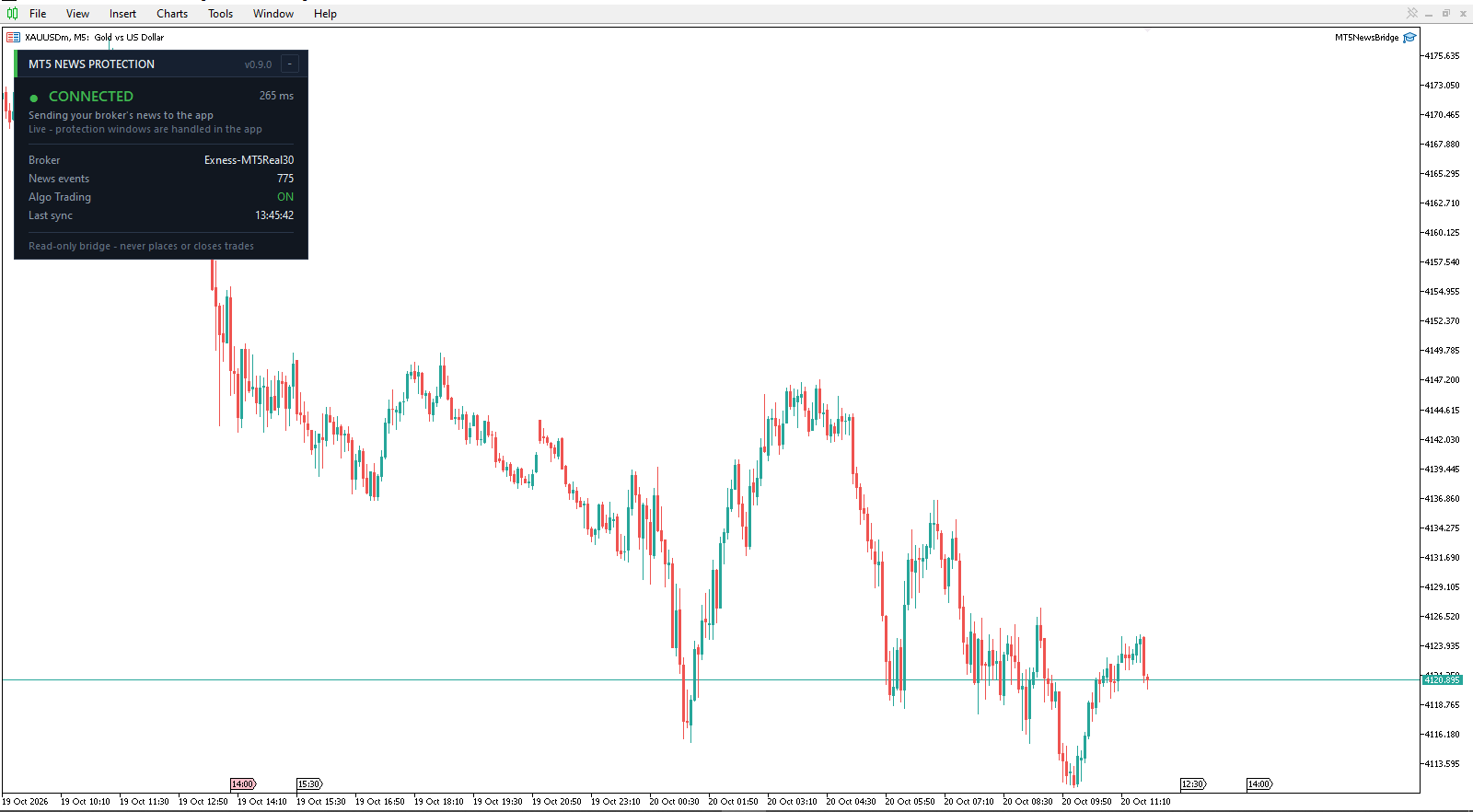
- On-chart EA panel: connection status, round-trip time, broker server, event count and Algo Trading state, collapsible and scalable.
- Activity Log: timestamped, filterable messages including every bridge lifecycle event.
- 12/24-hour time format, settings stored locally, no accounts, no telemetry, no secrets.
What You Get:
- The MT5 News Protection Windows desktop app (installer and portable build, Windows 10/11 64-bit).
- MT5NewsBridge.ex5 — the compiled bridge Expert Advisor, ready to attach to a chart. No installation, no external libraries, no DLL imports.
- Everything runs on your own machine: no subscriptions, no cloud accounts, no data leaves your PC.
Requirements:
- Windows 10 or 11, 64-bit.
- MetaTrader 5 (build 2022 or newer) on the same PC — the broker's trade server must provide the economic calendar (most brokers and all MetaQuotes-demo servers do).
- Algo Trading enabled in MetaTrader 5 so the EA is allowed to run.
How to Install:
- Download and install the MT5 News Protection app, then start it — the sidebar shows NOT CONNECTED.
- In MetaTrader 5 open File → Open Data Folder, then navigate to
MQL5\Experts\and copy MT5NewsBridge.ex5 into it. No compilation is needed — the EA is supplied ready to run. - In MetaTrader 5 go to Tools → Options → Expert Advisors, tick "Allow WebRequest for listed URL" and add
http://127.0.0.1,127.0.0.1:8640and127.0.0.1. Click OK (not X). - Drag MT5NewsBridge from the Navigator onto any chart (any symbol, any timeframe — it does not trade) and accept the defaults.
- Within a second the app sidebar turns green (LIVE) and the calendar fills with your broker's real events. Set your protection window in Protection Settings.
EA Input Parameters:
- App address (keep 127.0.0.1: same PC only) — Bridge host, default
127.0.0.1. - App port (must match Protection Settings > Advanced in the app) — Bridge port, default
8640(must match the app's bridge port). - Security key (optional; must match the key set in the app) — Optional pairing token; must match the token set in the app's Protection Settings.
- PastHours / FutureHours — Calendar poll window (7 days past / 14 days future by default).
- Show the status panel on the chart — On-chart status panel (on by default).
- Panel Position : PanelX / InpPanelY — Panel position in pixels from the top-left of the chart.
- PanelScale — Panel scale (100 = normal; raise to 125–150 on high-DPI screens).
Tips:
- Start the desktop app before attaching the EA so the handshake completes immediately.
- If the sidebar stays NO DATA with the EA attached, the loopback address is not allow-listed yet (MetaTrader error 4014) — redo step 3, then remove and re-attach the EA.
- Only one EA session is active at a time — if two terminals connect, the most recent handshake wins.
- Algo Trading control is off by default. Leave it on Off or Monitor unless you specifically want the app to pause your EAs during news windows.
Note: The News Protection EA is an advisory protection layer — it does not open trades and does not interfere with any trading strategy. The calendar comes solely from your connected MT5 terminal's broker calendar. Trading leveraged products involves substantial risk of loss.